
Use Scan inventory in to build a receiving list by barcode entry or scanning. The receiving locations and purchase orders available to you can vary with your account setup and permissions.
Scan inventory in
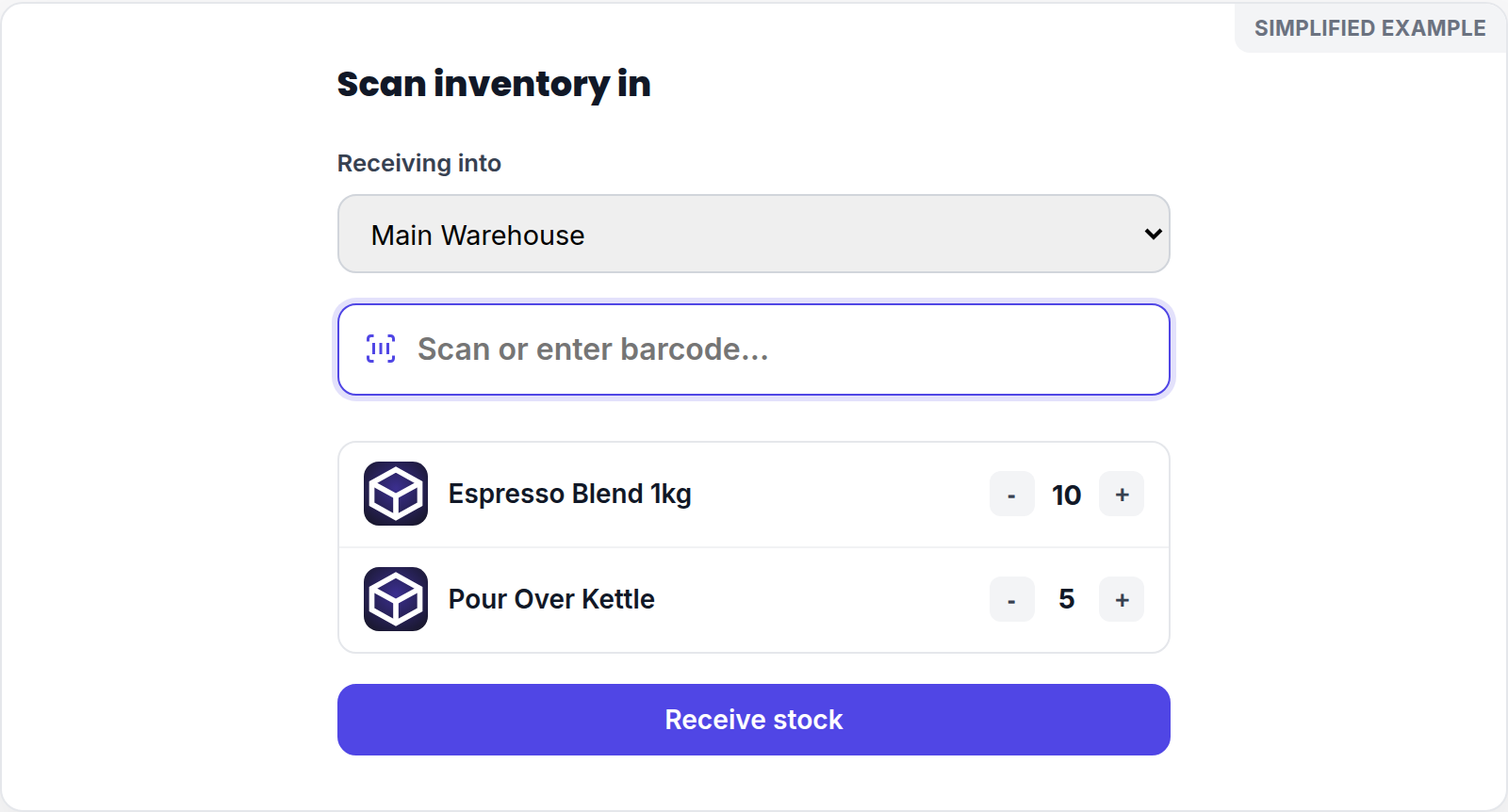
Simplified screen example with sample data.
- Select Scan inventory in.
- Choose the location you are receiving into.
- If the delivery belongs to an open purchase order, select it in Receiving against. Otherwise, leave that option unselected.
- Scan or enter each barcode.
- Review the scanned session and correct quantities before selecting Receive stock.
When receiving against a purchase order, match the scans to the order's products and verify the physical delivery before committing the receipt.
If a barcode or count needs attention
- Recheck the barcode and product label when an item is not recognized.
- Adjust the session quantity to the quantity actually received before completing the receipt.
- Confirm the selected receiving location; receiving into the wrong location can make a quantity appear missing elsewhere.
- For a delivery that does not match its purchase order, enter the quantity actually received and review the order status afterward.
If the scan action is locked or unavailable, do not work around it with a different location. Ask an administrator to confirm that your role can scan inventory in.