
The Warehouse workspace is included in the Multi-Location plan. It brings together stock, receiving, transfers, online orders, and purchase orders for a warehouse location. Available options can vary with your account setup and permissions.
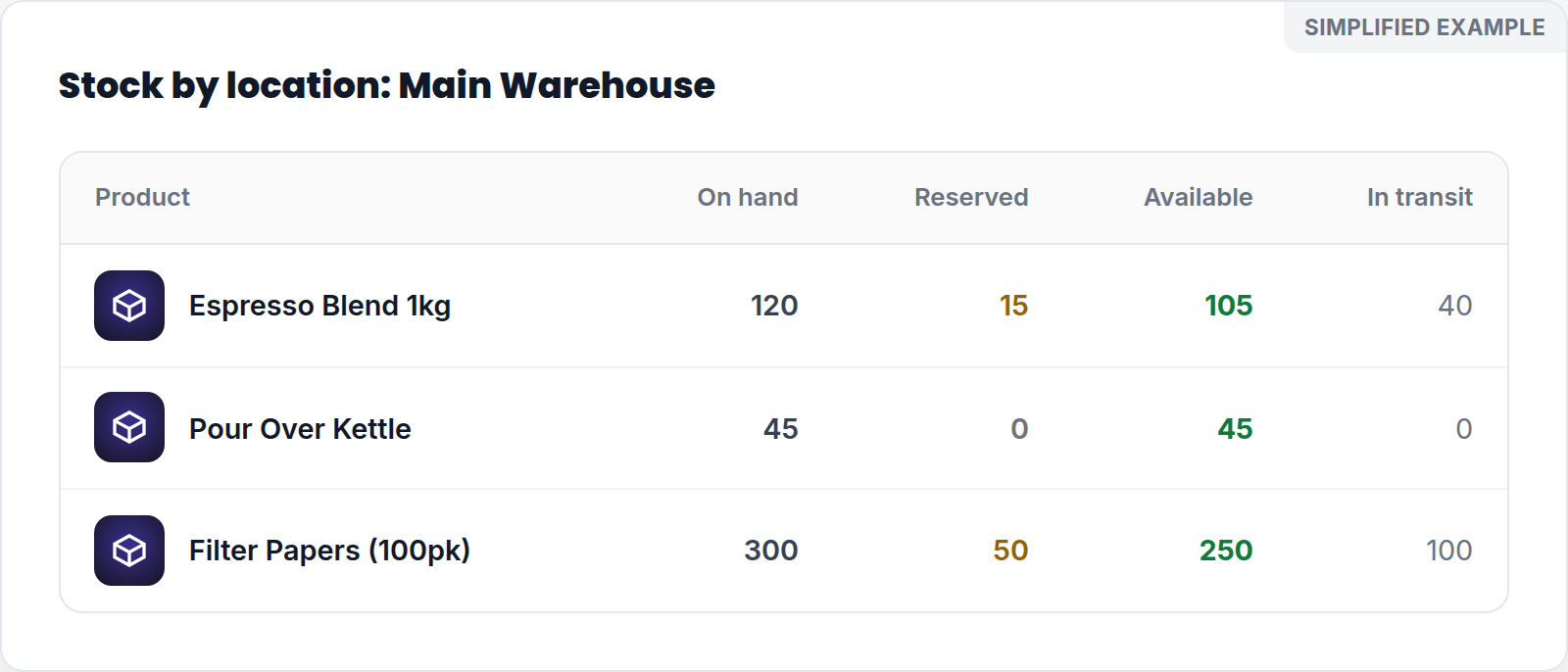
Simplified screen example with sample data.
Find the right stock view
Open Inventory and choose Stock by location or Stock visibility. Use the available view to check:
- All locations for a combined stock picture.
- Warehouse only to focus on the warehouse.
- Per location to compare a product across locations.
The transfer list also shows stock that is in transit. Treat in-transit quantities separately from stock currently held at a location while you investigate a count.
Understand stock counts
- On hand is stock recorded at a location.
- Reserved is stock set aside for orders.
- Available is the quantity left after reservations.
- In transit is stock moving between locations; check the transfer status before treating it as available at the destination.
For example, 20 units on hand with 5 reserved leaves 15 available. This is an illustrative example, not live account data.
Check a quantity that looks wrong
- Search for the product and switch to the relevant location view.
- Review open transfers and their status.
- Review recent receiving or the related purchase order, if there is one.
- If a transfer arrived short, use the discrepancy workflow rather than changing the transfer record informally.
If you cannot see a location, a stock view, or an action you expect, confirm that you are in the intended location and ask an account administrator to review your permissions.