
Use Purchase orders to record what you are ordering and receive what arrives. Suppliers, locations, and available actions can vary with your account setup and permissions.
Create a purchase order
- Go to Inventory > Purchase orders and select New purchase order.
- Select the supplier and the location you are ordering for.
- Add products and ordered quantities.
- Enter an expected delivery date when known.
- Save the order as a draft or send it using the available action.
The list can show Draft, Ordered, Partially received, and Received statuses.
Receive a delivery
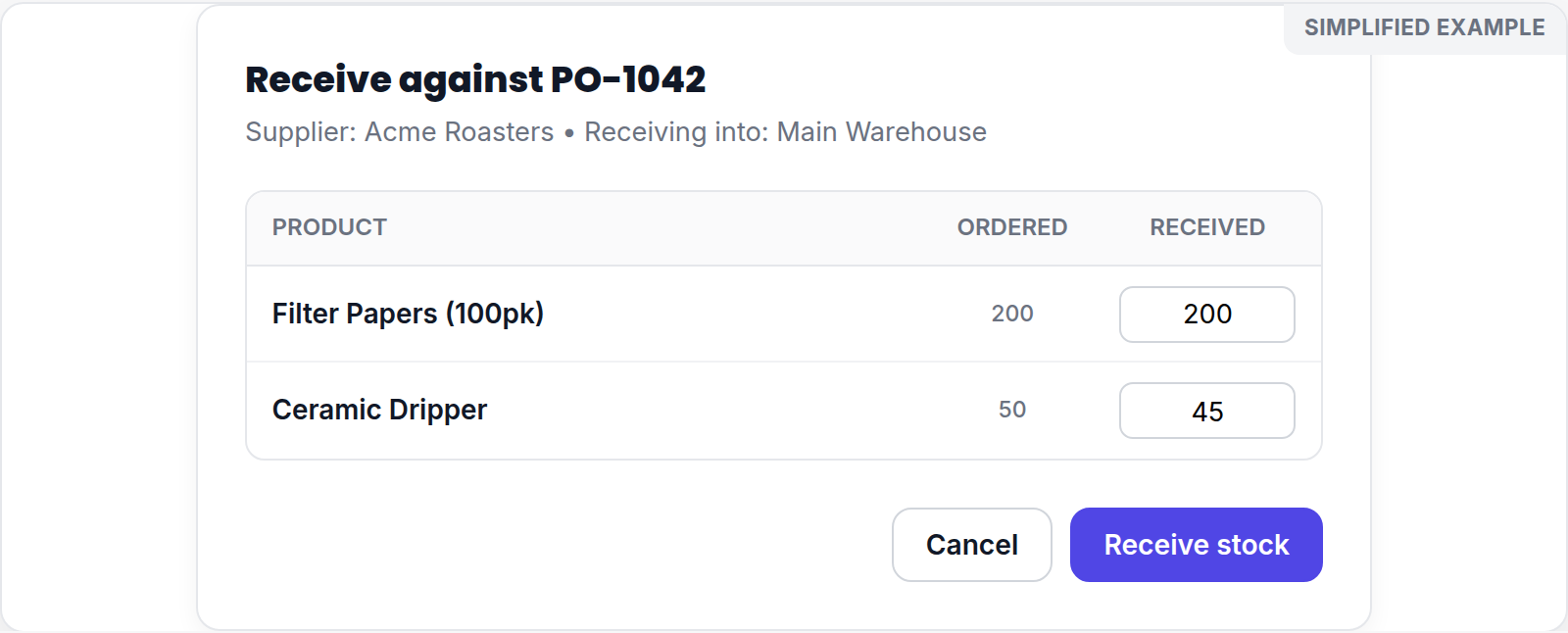
Simplified screen example with sample data.
Open the purchase order and select Receive. Enter the quantity that actually arrived for each line, then select Receive stock. The receiving location is shown on the purchase order—check it before confirming.
Handle a partial receipt
Receive only the units that arrived. If some ordered units are still outstanding, the purchase order remains Partially received rather than being treated as complete. Return to the same purchase order when the remaining goods arrive and record the next receipt.
You can also choose an open purchase order from Scan inventory in and receive matching scanned items there. If you cannot create or receive a purchase order, ask an administrator to review your warehouse permissions.