
Taplo supports fully purchasable gift cards that customers can buy for themselves or send to others. Gift cards are set up as products in your catalog, making them easy to surface at checkout or on your online storefront.
Creating a Gift Card Product
Navigate to your product catalog and create a new product
Set the product type to Gift Card
Give it a clear name (e.g., "$100 Gift Card")
Set the price to match the gift card value (e.g., $100)
Optionally, assign a custom image to make it visually appealing in the storefront
Enable "Top Pick" (or equivalent) if you want it prominently featured at checkout
You can create multiple gift card products at different denominations (e.g., $25, $50, $100) to give customers options.
How It Works for Customers
When a customer purchases a gift card:
They complete checkout like any other product purchase
Taplo automatically sends them a link containing a unique gift card code
The recipient can redeem the code themselves at checkout or share it with a friend
Redeeming a Gift Card
Gift card codes are applied at checkout on your Taplo storefront, the same way discount codes are entered. The balance is deducted from the order total automatically.
Key Benefits
No manual gift card management — codes are generated and delivered automatically
Shareable by design — customers can easily forward their code to gift it to someone else
Drives new customer acquisition — recipients who receive a gift card become new customers
Easy to merchandise — sell gift cards alongside your other products in the storefront or at the counter
Where to find gift cards
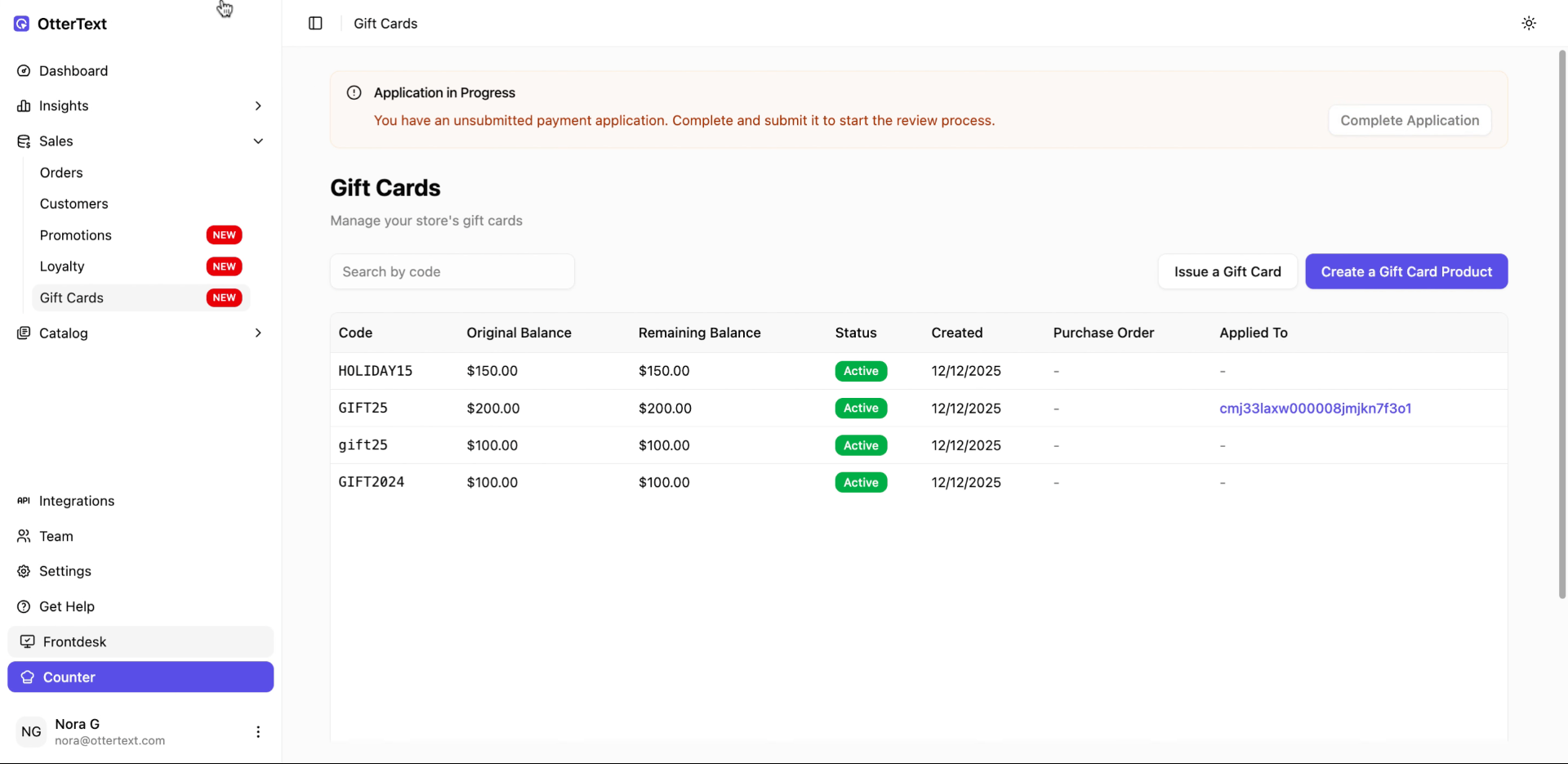
Open the left-hand menu, click Sales, then click Gift Cards.
This page shows every gift card you’ve issued. You’ll see the code, the original amount, what’s left on it, and whether it’s active. If a gift card has already been used, clicking Applied To takes you straight to the order where it was applied, which makes it easy to double-check what happened.
Issuing a gift card
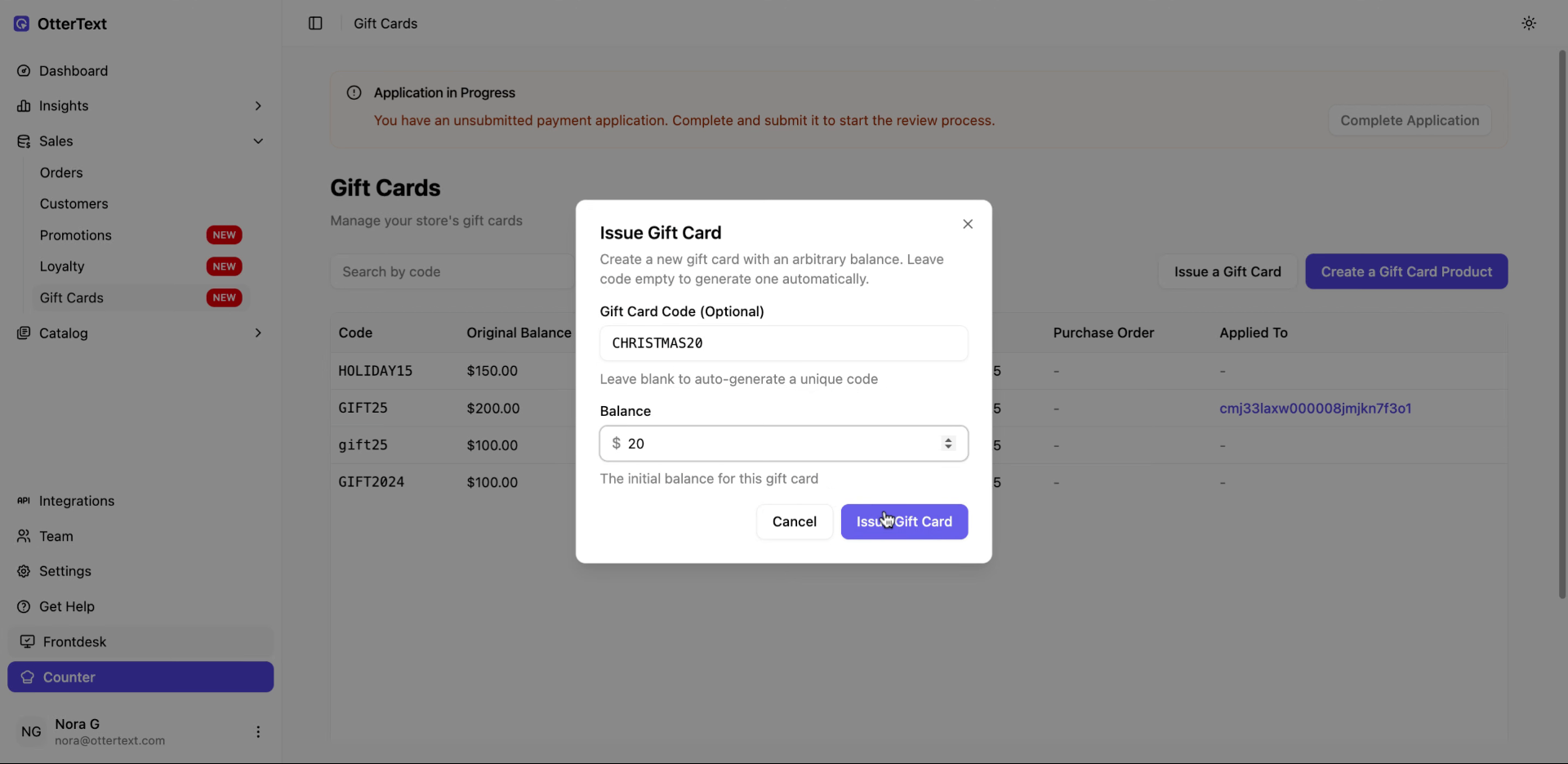
To create one, click Issue a Gift Card. A small window opens where you set it up.
If you type in a gift card code yourself, it has to be ALL CAPS — lowercase codes won’t work. You can also leave the code blank and let Taplo generate one for you.
Once you set the amount and confirm, the gift card is live immediately and ready to use.
Using a gift card at checkout
Gift cards are applied during checkout. You just enter the code and click Apply.
You’ll immediately see how much of the gift card was used on that order and how much is still left. If there’s remaining balance, it doesn’t go away — you can use the same gift card again on a different order later. Taplo keeps track of it for you automatically.
Having gift cards as a product
You can also sell gift cards like a normal product.
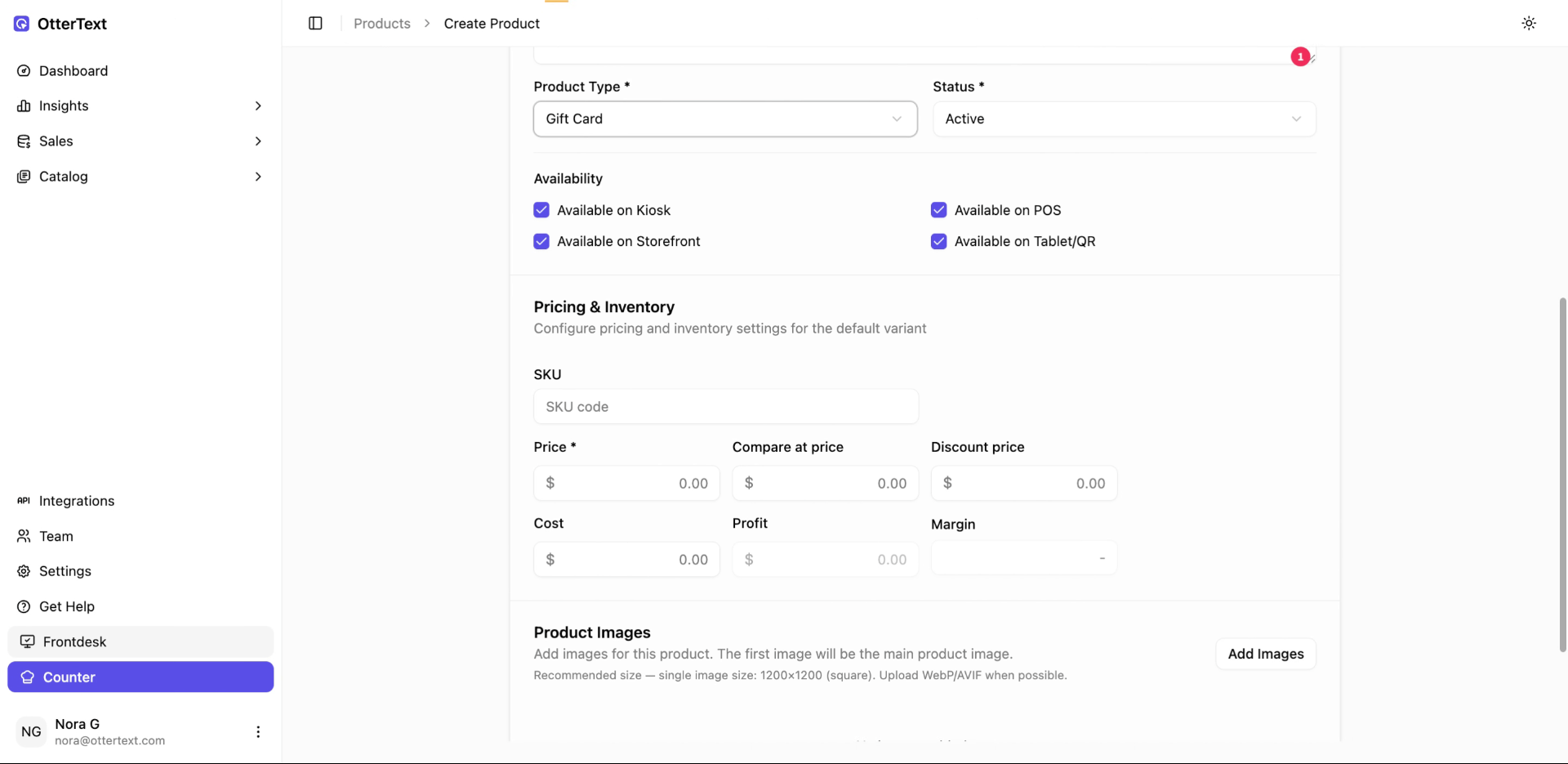
When you create a gift card product and set a price, customers can buy it the same way they buy anything else. Once it’s purchased, Taplo creates the gift card balance behind the scenes, and that balance can then be used at checkout with the gift card code.
To create a gift card as a product, go to Sales, then Gift Cards, and click Create a gift card as a product.
For the product type select gift cards.
This works well for online sales, in-store purchases, or when customers want to buy credit for someone else.
Keeping track of gift cards
You don’t need to manage balances manually. Each gift card always shows how much was issued, how much has been used, and what’s left. If you ever need to see where a balance was applied, you can click into the related order directly.